Below, we give you all the steps on how to point your domain's DNS records on GoDaddy.com to Fasturtle.
1. Navigate to GoDaddy.com in your browser.
2. Select Sign In in the top right corner and then Sign In again to access the login page:

3. Enter your login information and select the green Sign In button:

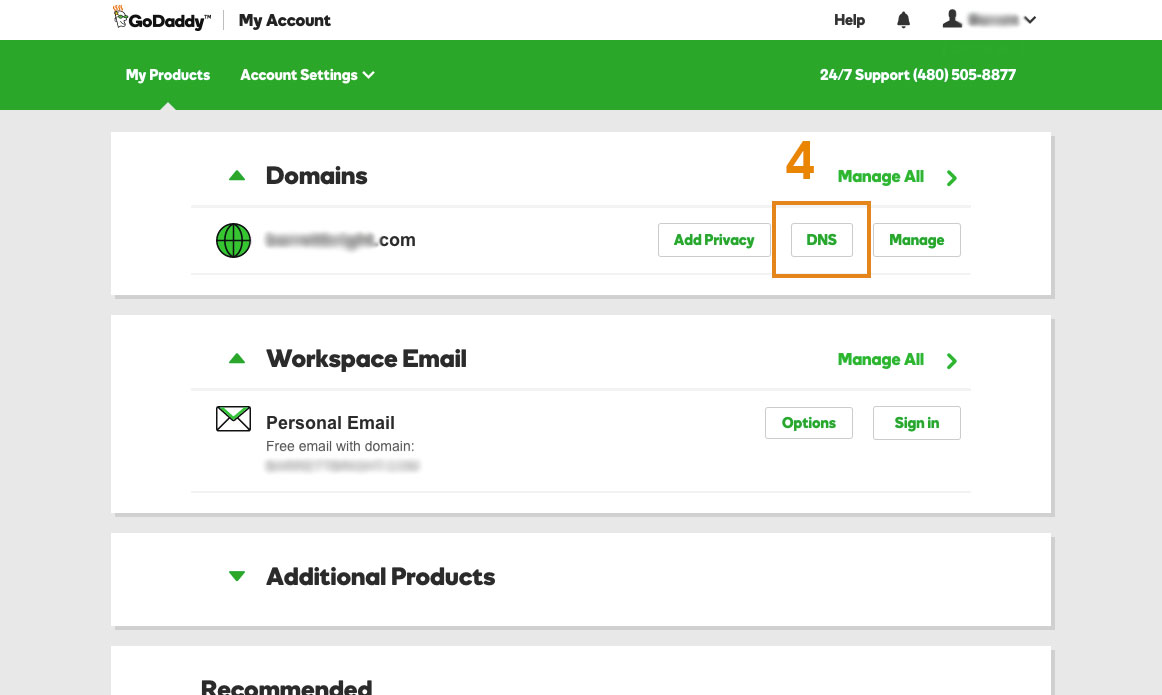
4. Select the DNS button next to your domain listed:
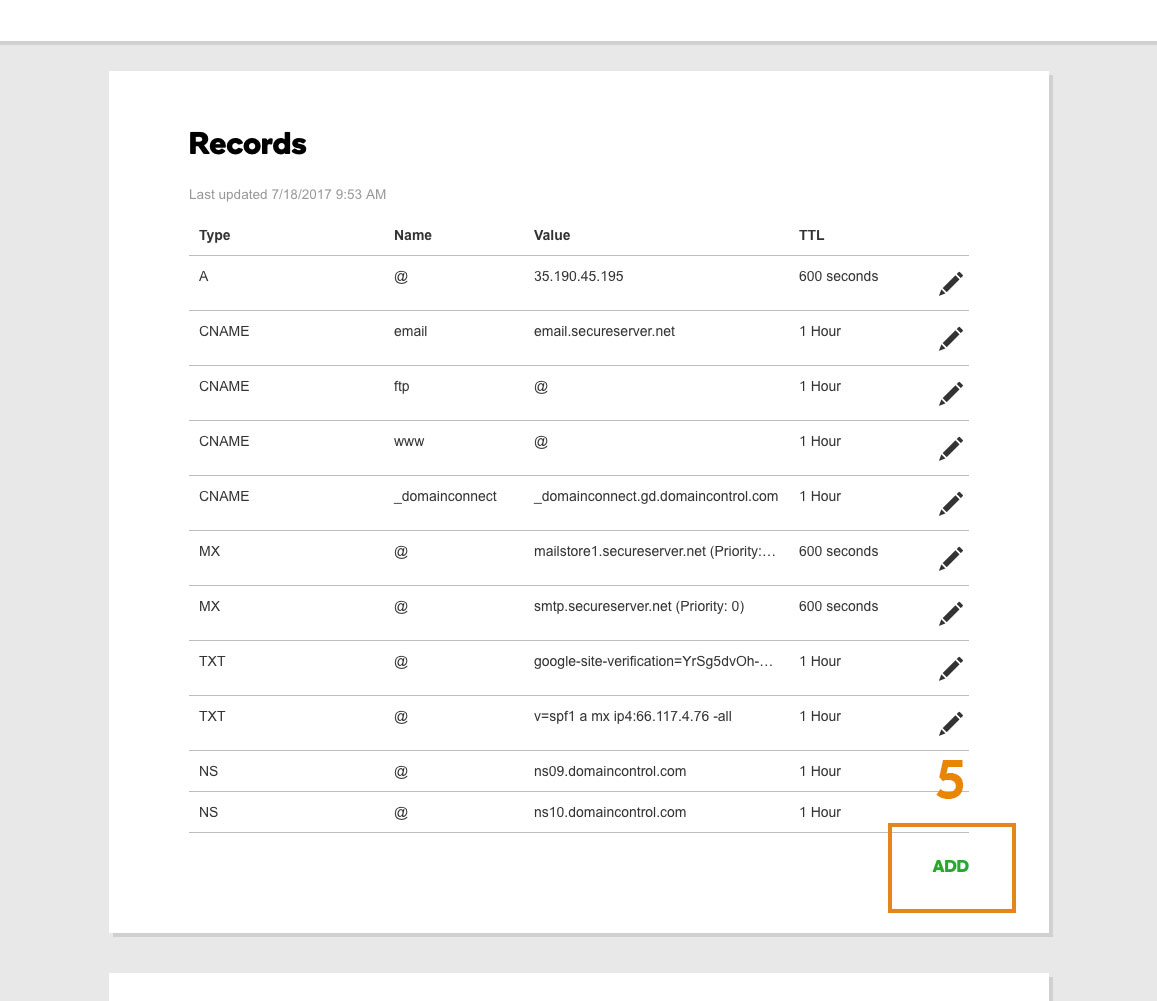
5. Review all of your Records before adding a new A Record. If you notice an A Record already in your records, edit it by selecting the Pencil icon, instead of adding a new one. Select Add in the bottom right corner under Records to add a new A Record.
Important: If you use an email provider, check with them to see if they require an A Record in your DNS Records. Webmail hosts that require an A Record pointing to their server are not compatible with Fasturtle's A Record setup. (If you are worried about editing your records and want to avoid your webmail ceasing to work, we recommend taking a screenshot of the current records in case you need to reimplement the prior records.)

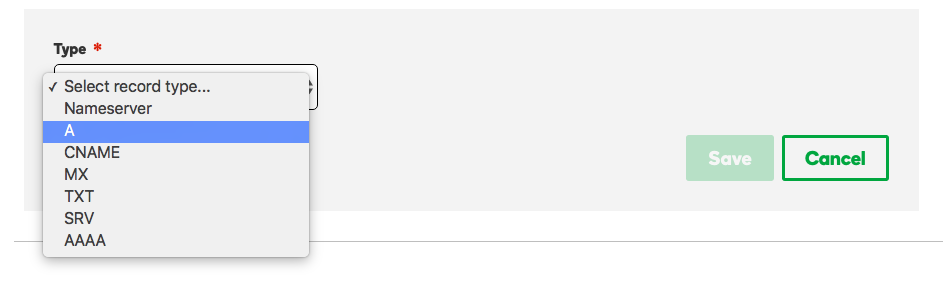
6. Select A from the dropdown window under Type. Enter @ in the Host field, and enter 34.96.66.215 into the Points to field. Lastly, select 1/2 Hour in the TTL dropdown window.
6.1:
6.2:
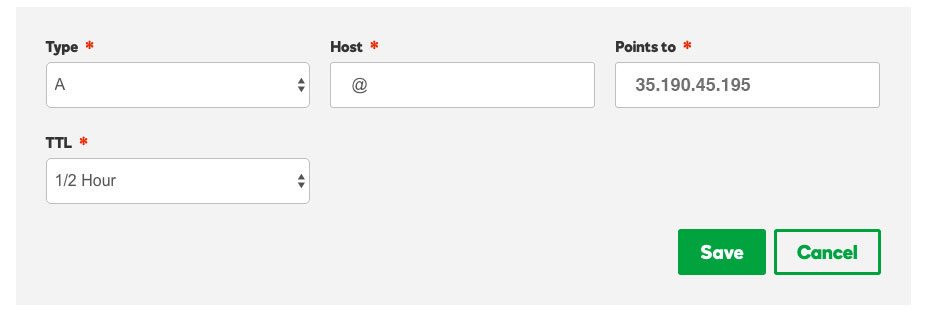
7. Select Save and your DNS changes are complete. See below about propagation time.
8. Make sure that you have added your domain to your website Dashboard settings. The site will not appear until you do so.
Note: DNS changes can take up to 24-48 hours to completely take effect. Please confirm that you only have one A Record setting for your domain as multiple ones can conflict and make your site inaccessible. Also, do not use custom name server values; instead, set the domain to the default/standard name server values.